Download Textures for Minecraft PE
Best Textures for Minecraft Bedrock
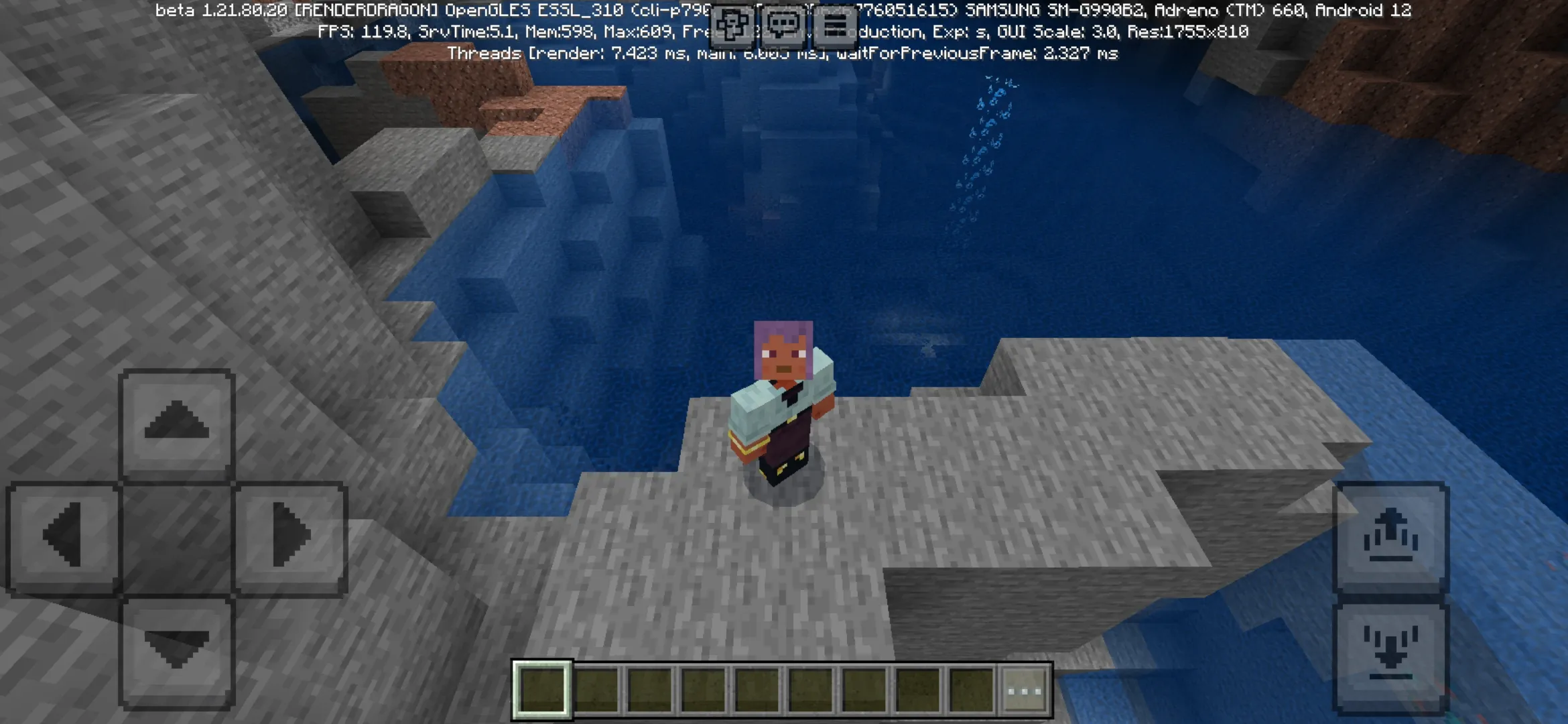
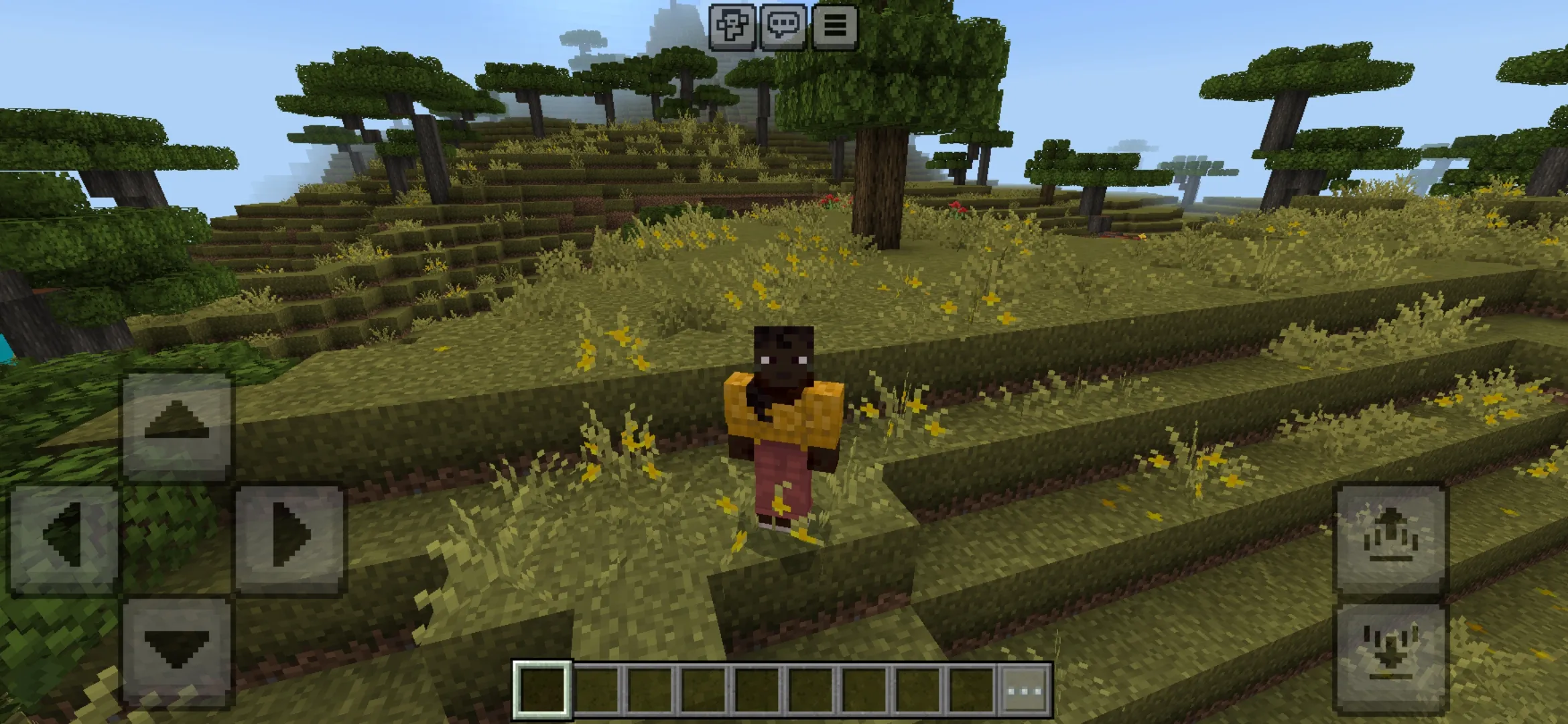
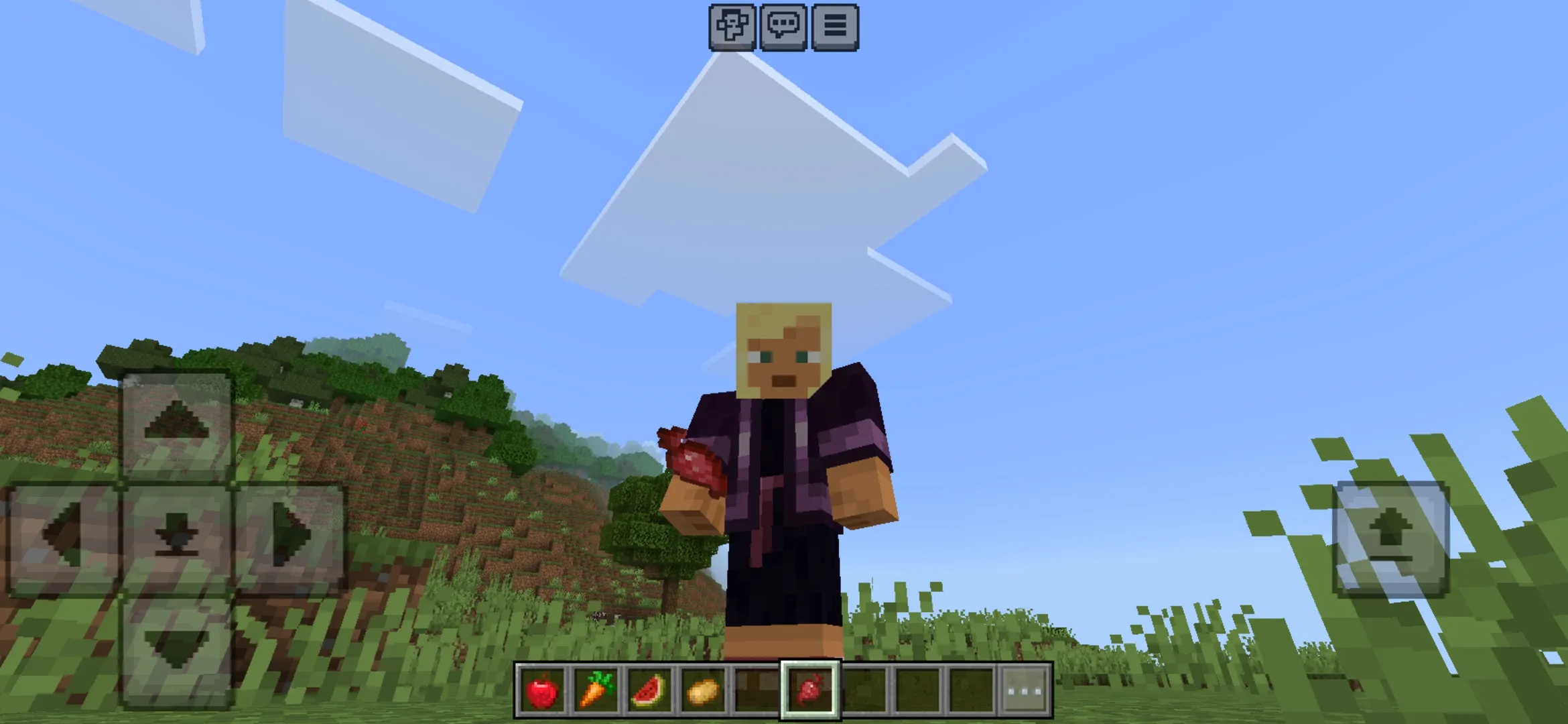
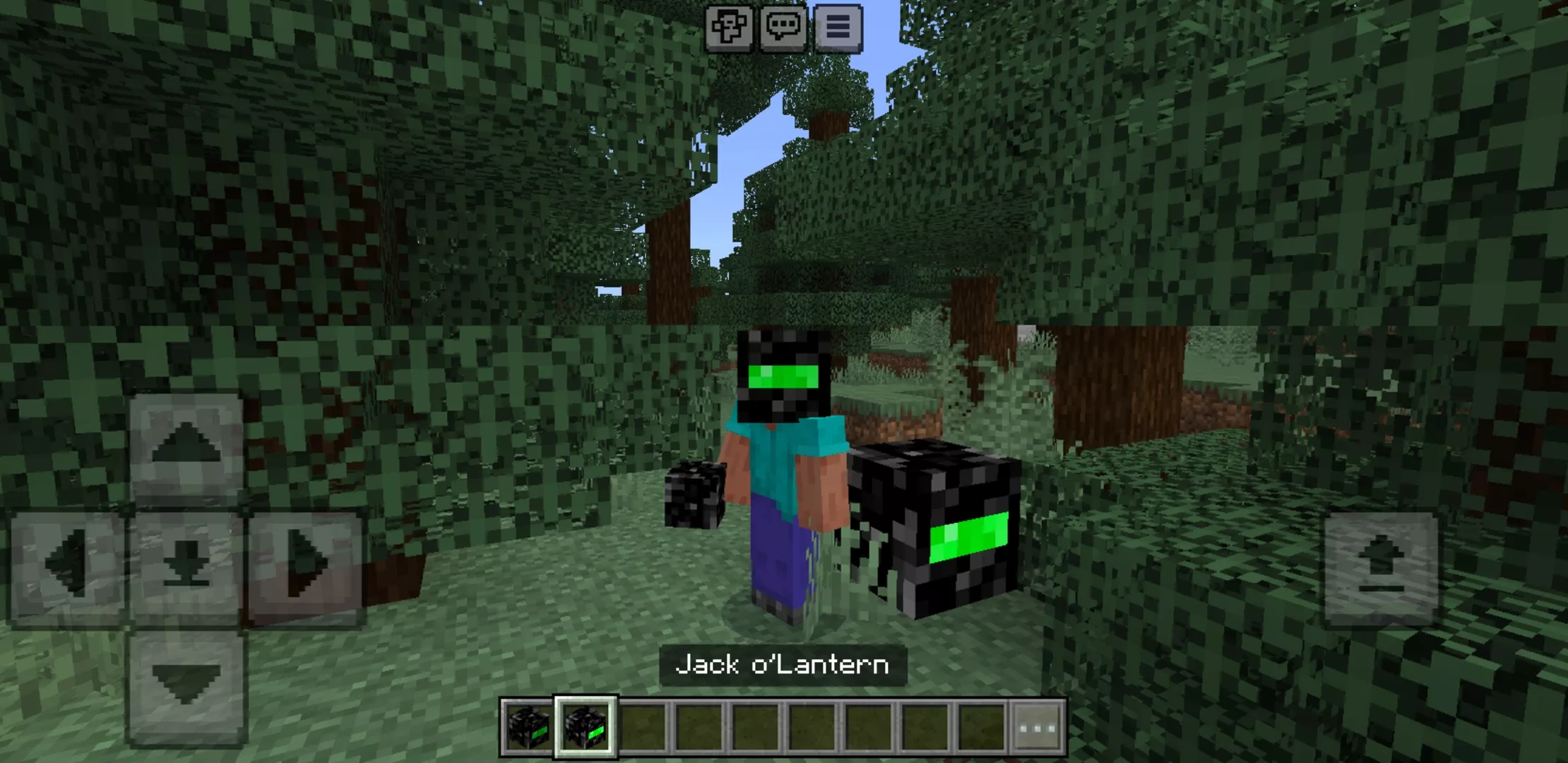
Best Texture Packs for Minecraft PE on Android
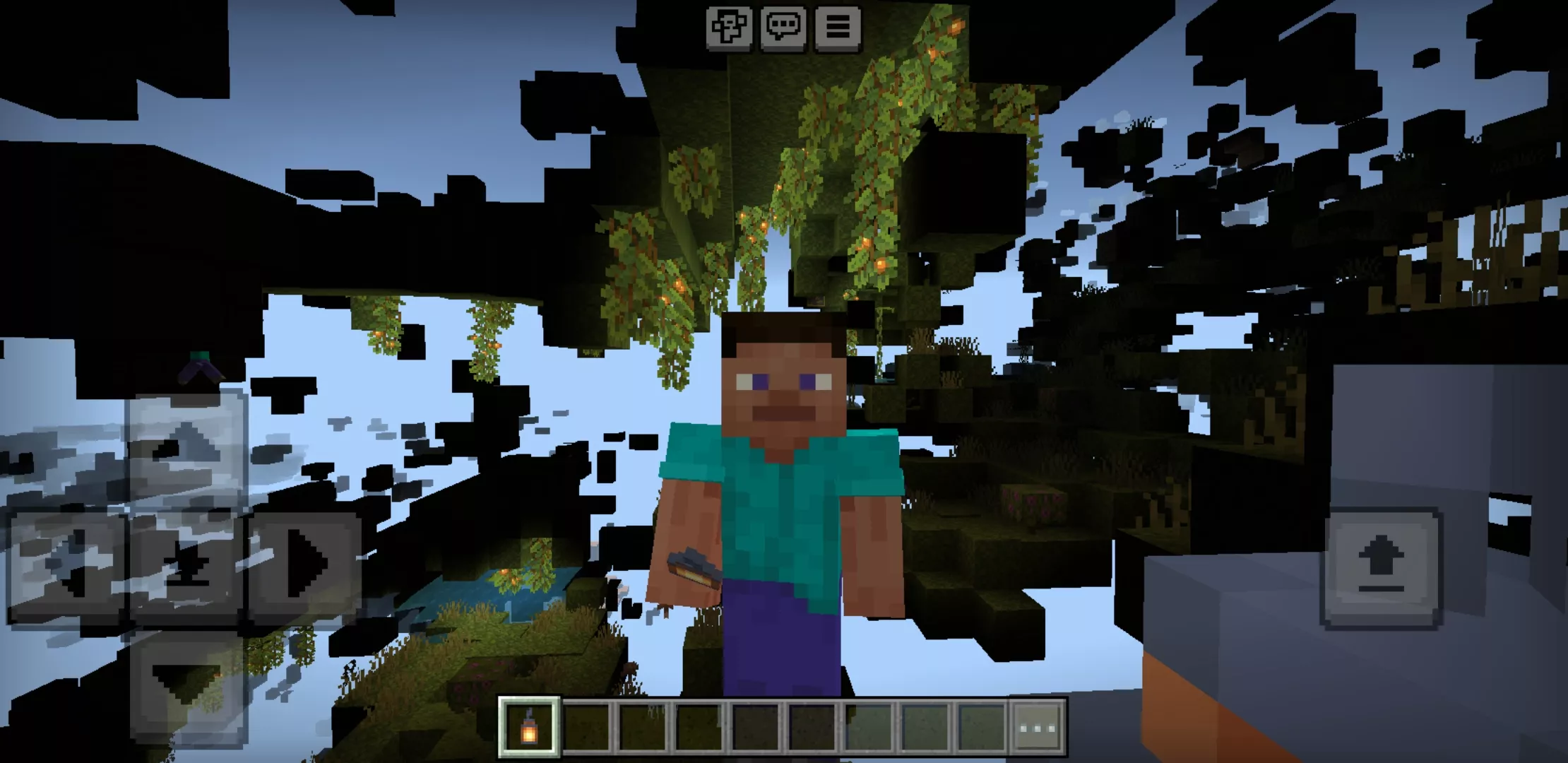
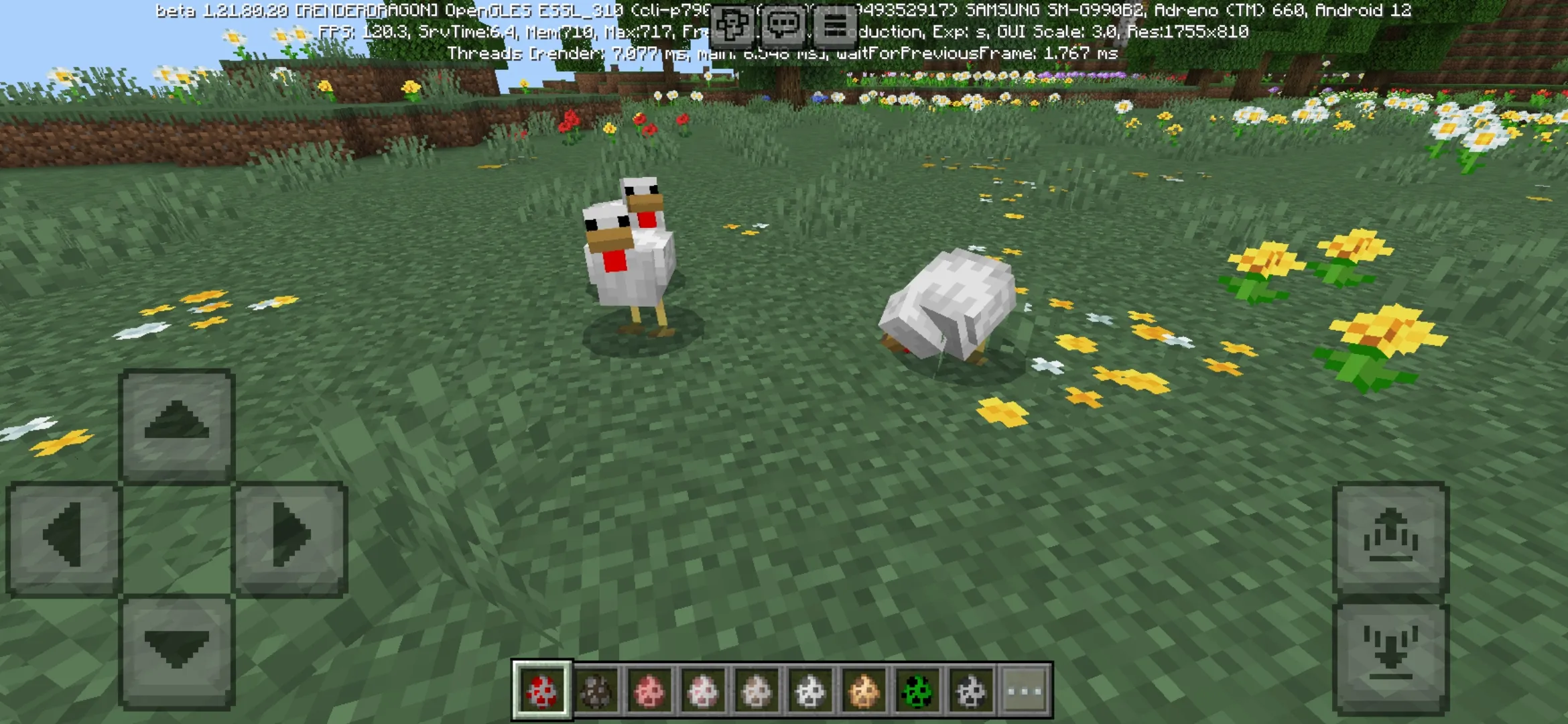
Texture packs change how every block, item, and mob looks in Minecraft Bedrock. Swap the default pixel style for sharp realistic visuals, soft cartoon graphics, or competitive PvP textures with cleaner outlines and higher contrast.
Every pack on this page is a free download in .mcpack format. One tap and Minecraft Bedrock imports the textures straight into your global resources — no file managers, no extra tools.
Texture Pack Resolutions
Resolution decides how detailed a pack looks and how much it loads your device. The number refers to pixels per block face — a 16x pack matches default Minecraft, while 128x packs add four times more detail.
- 16x — default Minecraft resolution. Lightest on performance. Best for PvP and low-end Android.
- 32x — moderate detail. Good balance of visuals and FPS for most phones.
- 64x — sharper textures. May reduce FPS on weaker devices.
- 128x and above — high detail. Built for high-end Android, tablets, and Windows.
Stick to 16x or 32x if your phone has 3 GB RAM or less. Higher resolutions look stunning in screenshots but can cause lag on entry-level devices.
Popular Types of Texture Packs
Different players search for very different texture packs. Builders want realistic photo-grade visuals. PvP players want clean low-resolution packs with bold outlines. Survival players want utility packs that make caves, ores, or mobs easier to spot.
- Realistic packs — photo-grade textures, detailed surfaces, lifelike materials
- Cartoon and stylized packs — soft colors, hand-drawn vibes, anime-style visuals
- PvP packs — short swords, low-fire, clear outlines, bigger health bars
- X-Ray and Night Vision packs — see ores through walls, brighten dark caves
- Default-improved packs — minor tweaks that keep the vanilla feel
- FPS Boost packs — simplified textures that improve performance on weaker phones
- Themed packs — medieval, modern, sci-fi, horror, and seasonal styles
Supported Minecraft Bedrock Versions
Most texture packs in this section work on the newest Minecraft Bedrock builds. Compatibility depends on the pack — always check the supported version on the pack page before downloading.
- Minecraft 26.x — latest Bedrock release. Full support for new blocks, biomes, and Vibrant Visuals.
- Minecraft 1.21 — large active base. Most modern texture packs run on 1.21 without issues.
- Minecraft 1.20 — stable legacy. Many older packs still work correctly.
- Older versions — only when the pack page clearly lists support.
If a pack imports but some textures look broken or pink-and-black, the cause is usually a version mismatch. Update Minecraft Bedrock or pick a pack built for your current version.
How to Install Texture Packs on Minecraft PE
Most Minecraft PE texture packs come as .mcpack files. The format is designed for one-tap install on Android — no rooting, no third-party tools, no manual file copying.
- Download the .mcpack file from this page.
- Tap the file — Minecraft Bedrock opens and imports the pack automatically.
- Open Settings → Global Resources to apply the pack to every world.
- Or open a specific world’s settings and add the pack under Resource Packs.
- Move the pack to the top of the active list — it overrides any pack below it.
For a full guide with screenshots and troubleshooting, open how to install texture packs on Android.
Texture Packs vs Resource Packs vs Shaders
The terms overlap a lot. A texture pack changes how blocks and items look. A resource pack is the technical name Bedrock uses for the same thing — every texture pack is a resource pack. Shaders are different — they change lighting, shadows, water, and atmospheric effects, and most of them ship as resource packs too.
You can stack a texture pack and a shader in the same world. The texture pack handles surfaces, the shader handles lighting. Just make sure the active list is ordered correctly — shaders usually go on top.
Performance and Device Compatibility
Higher-resolution packs use more RAM and GPU. A 128x or 256x pack can drop FPS by half on a mid-range Android, especially when paired with shaders or large mods.
If you want better performance without giving up custom visuals, try a 16x or 32x pack with a few targeted improvements — clearer ores, better water, smoother animations. FPS Boost packs go even further by simplifying particle effects and unnecessary textures.
Before downloading, check the pack’s file size, resolution, and update date. Oversized packs built for tablets or Windows can crash entry-level phones on import.
Do Texture Packs Work in Multiplayer and Realms?
Yes — texture packs are client-side, so every player sees their own packs in multiplayer. You don’t need other players to install the same one.
Realms and dedicated servers can also push their own resource packs. When the server has a required pack, it downloads automatically when you join. Some PvP servers block client-side X-Ray or transparent packs to keep gameplay fair.
Common Texture Pack Problems and How to Fix Them
Even when a download finishes correctly, a texture pack can still fail to apply. Most issues come from version mismatch, wrong active order, or missing experimental settings.
- Pack does not import — file is damaged or built for a different Bedrock version.
- Imported but textures look the same — pack is not activated in Global Resources or world settings.
- Pink-and-black blocks — pack is outdated for the current Bedrock build.
- Some textures changed, others didn’t — another pack above this one is overriding it. Reorder the active list.
- Game crashes after activation — resolution is too high for the device, or another heavy pack conflicts.
- Low FPS after install — pack is too detailed; try a lower-resolution version.
Why Players Download Minecraft PE Texture Packs
Default Bedrock looks fine, but a single texture pack can completely change the mood of the game. A realistic pack turns survival into a cinematic experience. A cartoon pack makes the world feel softer and friendlier. A PvP pack gives competitive players sharper visuals for combat. An X-Ray or Night Vision pack saves hours of mining and exploration.
Texture packs are also the easiest way to refresh Minecraft PE without touching the gameplay. Drop in a new pack, restart the world, and everything looks brand new — same saves, same progression, completely different visuals.
Where to Start
If you’re new to Minecraft Bedrock textures, start with the featured packs at the top of this page — the most popular downloads right now. Use the category links to jump to realistic visuals or utility packs. For the matching game version, head to the Download Minecraft PE page and grab the latest Bedrock APK before installing your textures.