Download Maps for Minecraft PE
Best Maps for Minecraft Bedrock

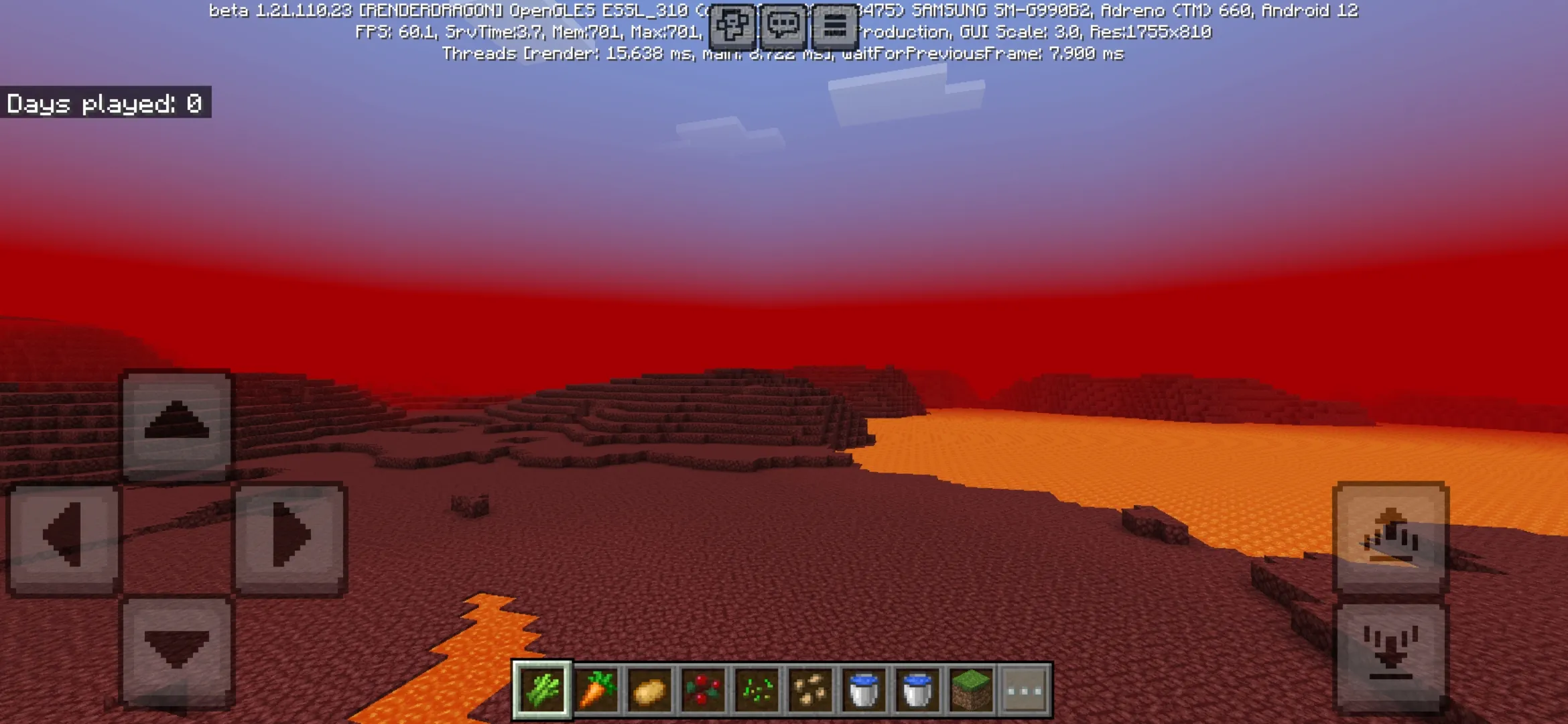
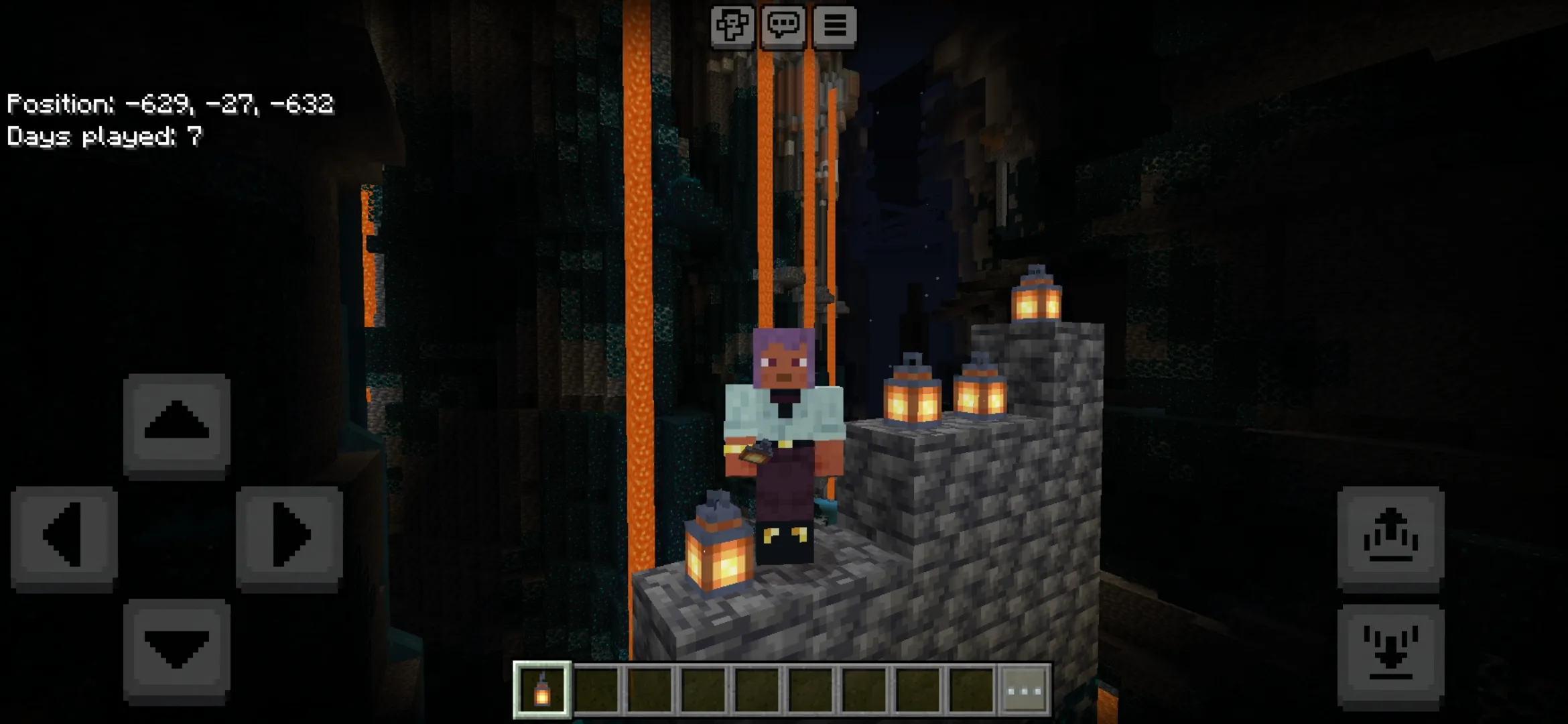
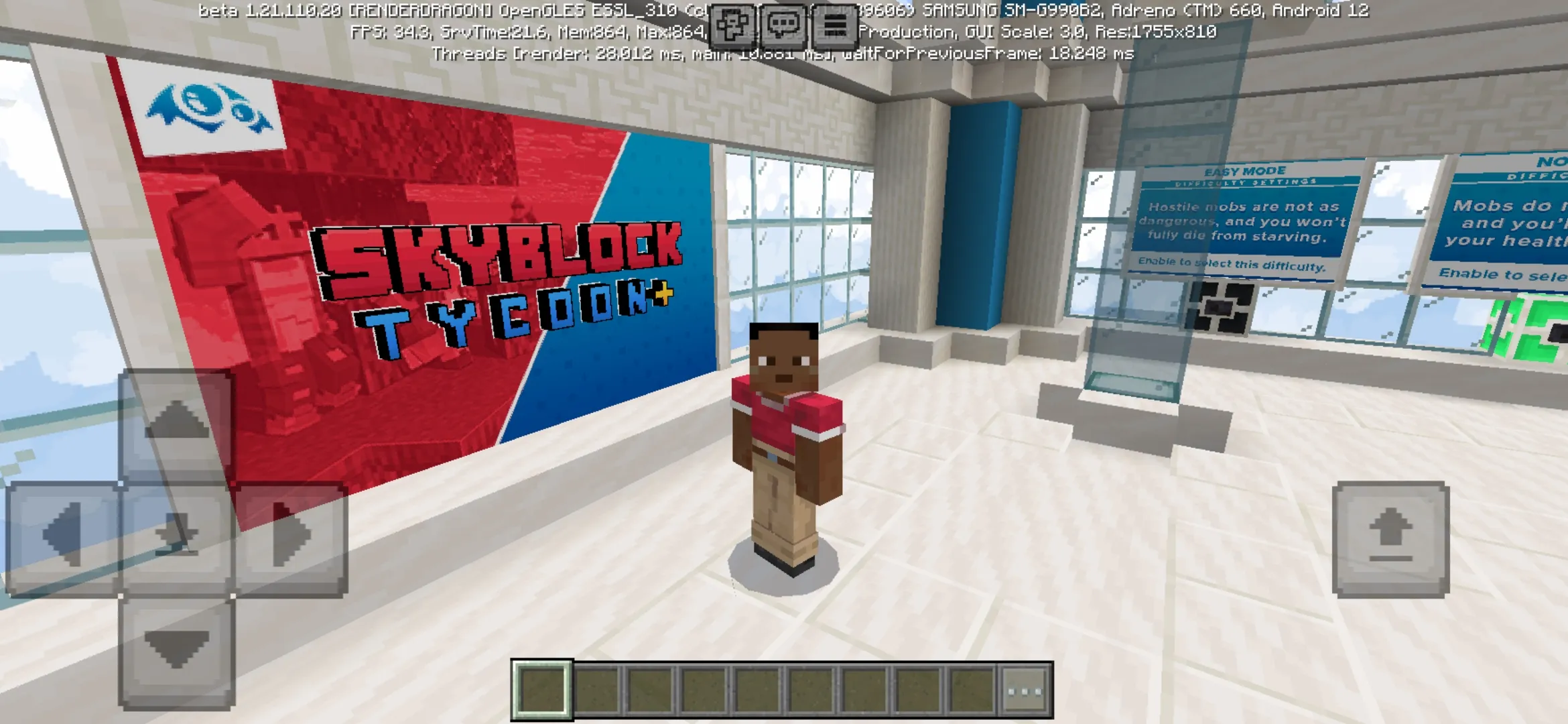
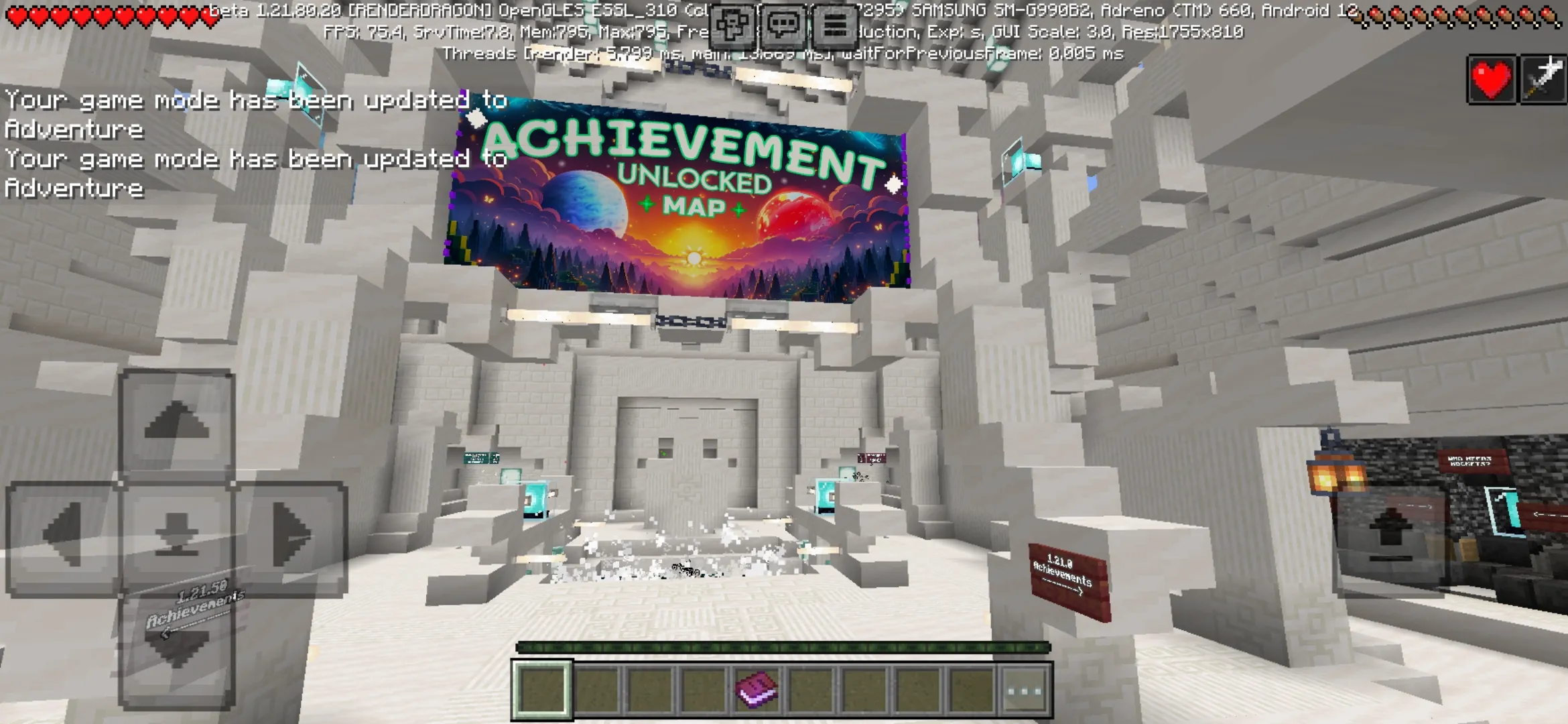
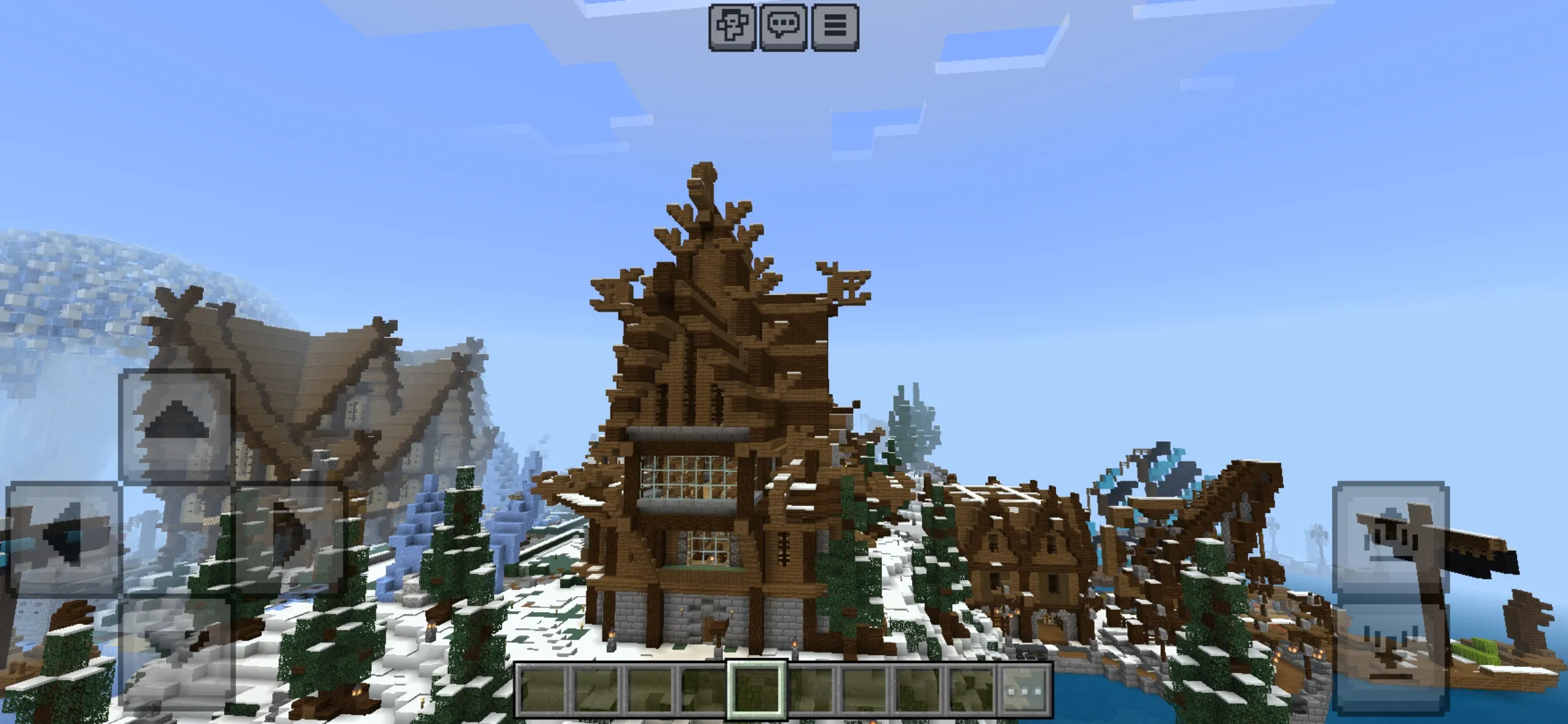
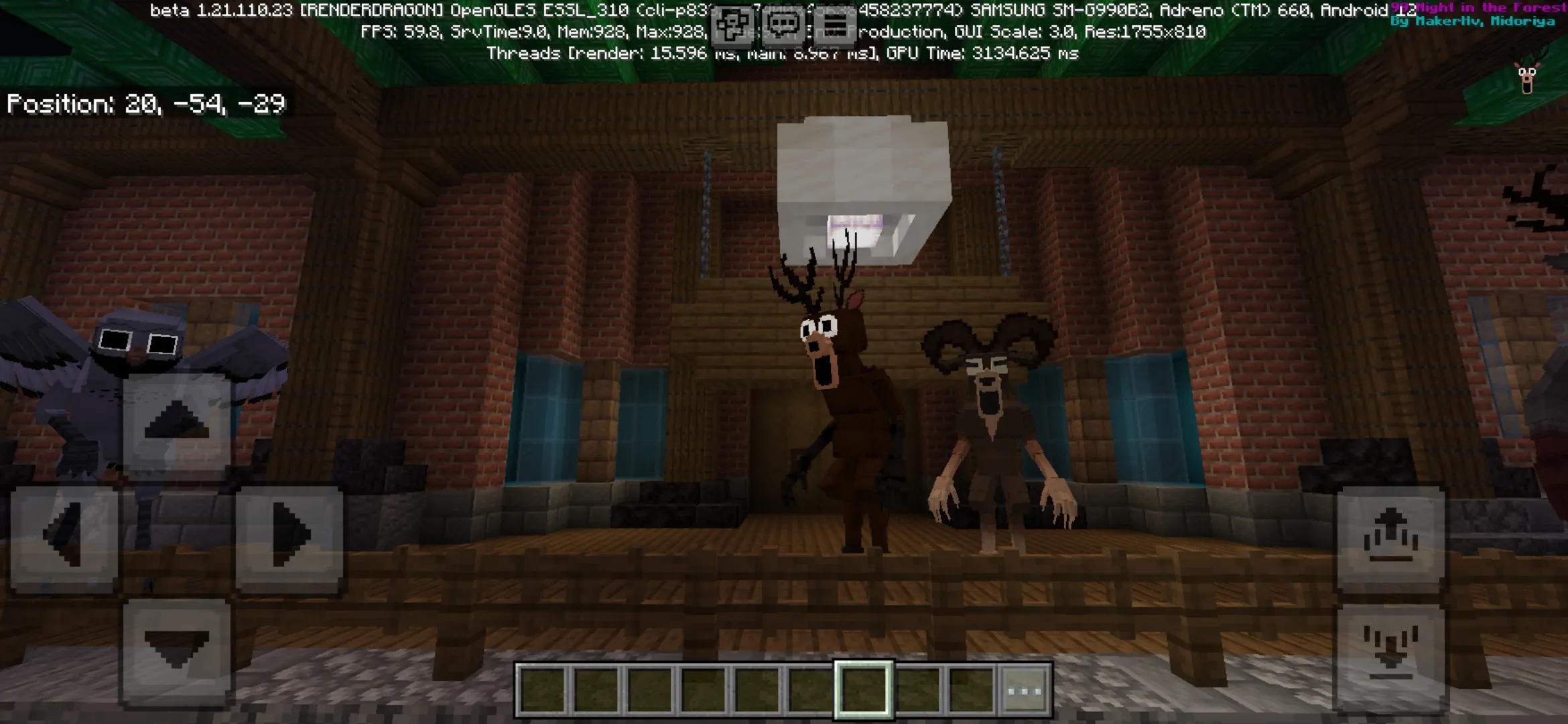
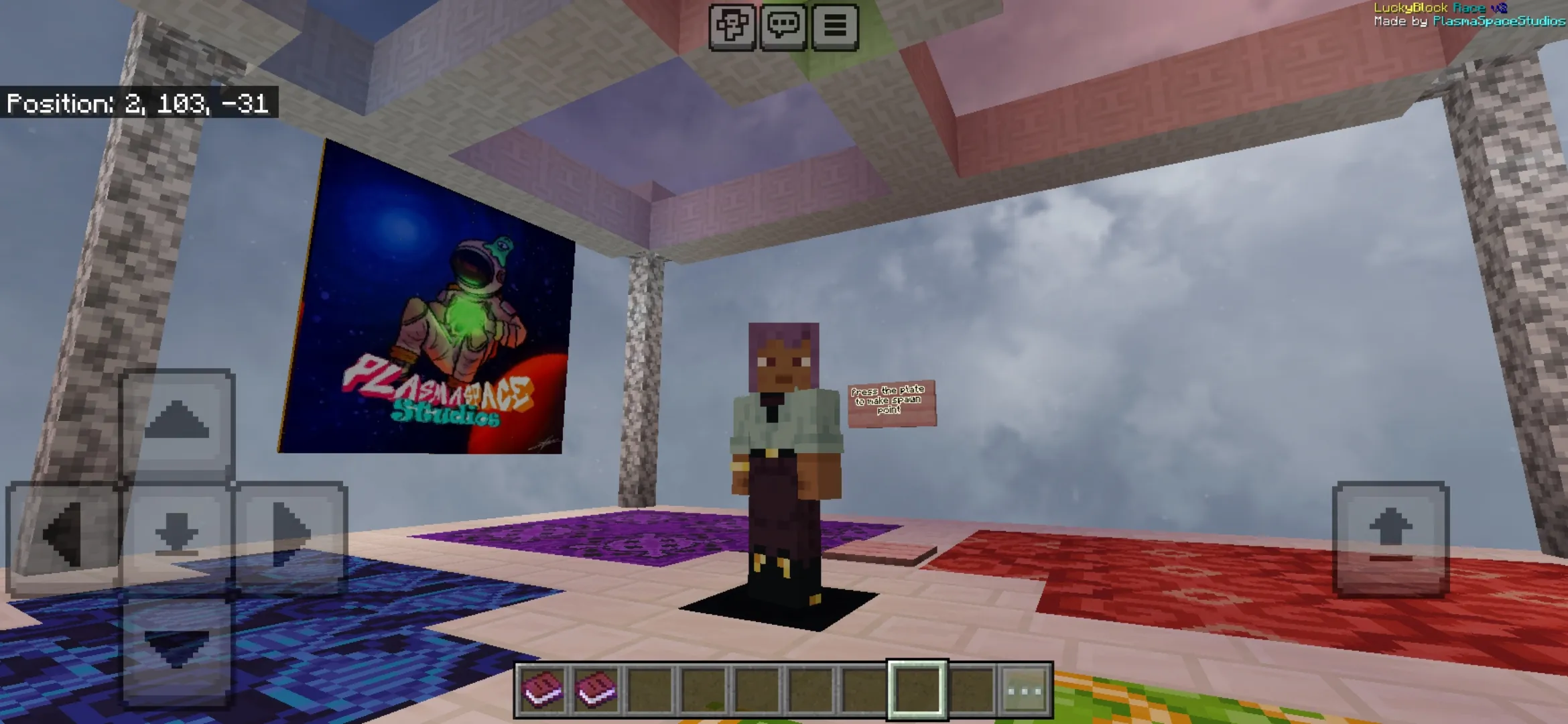
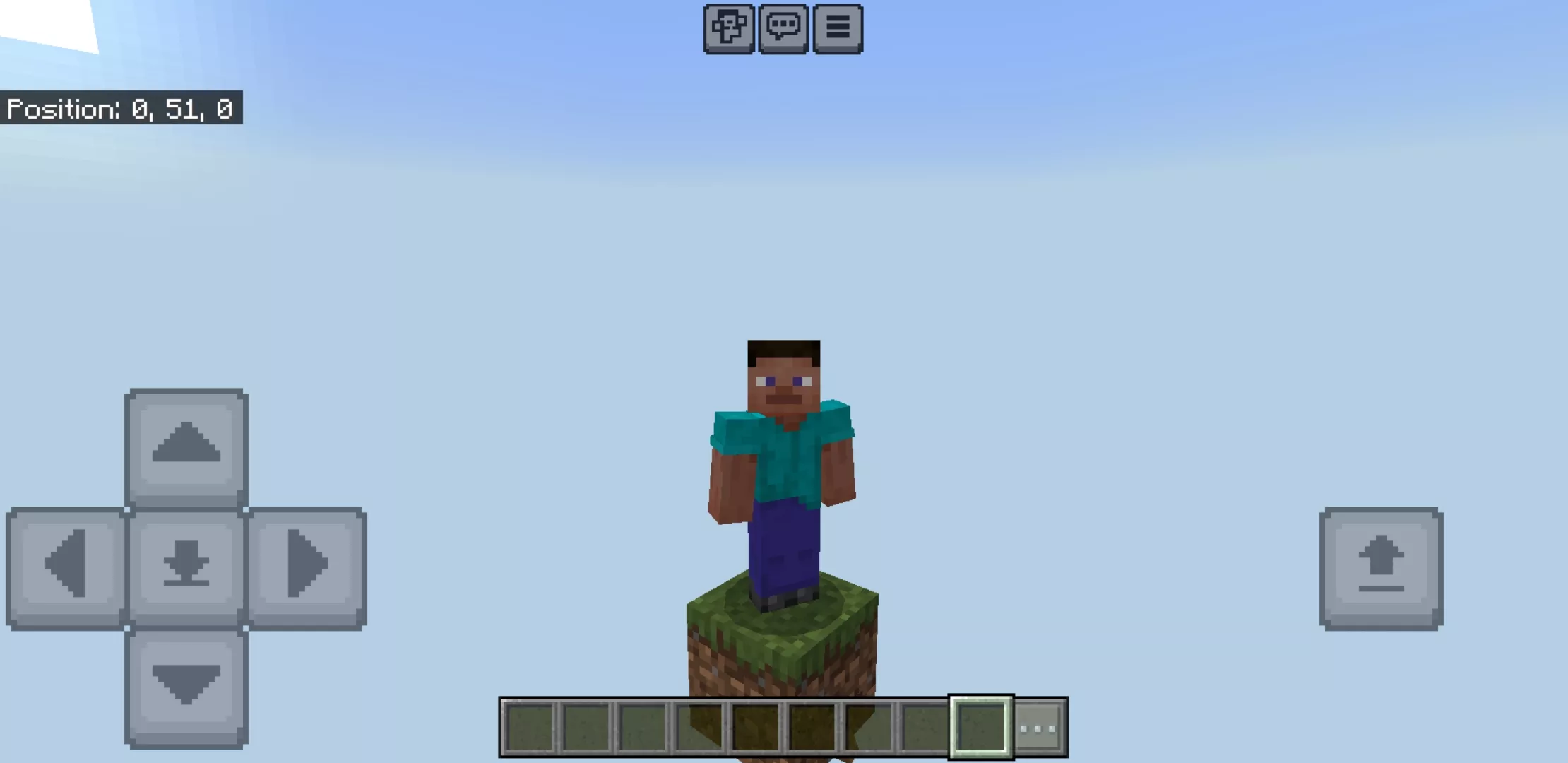
Best Maps for Minecraft PE on Android
Minecraft PE maps are ready-made worlds built by the community. Drop into a horror story, race through a parkour course, take on survival on a single block, or explore a fully built modern city — all without designing anything yourself.
Every map on this page is a free download in .mcworld format. One tap and Minecraft Bedrock imports the world straight into your saves — no file managers, no extra tools.
Popular Map Categories
The category covers every type of Minecraft PE map players actually search for. Some worlds focus on long-term survival with custom mechanics. Others are built around parkour, mini-games, horror stories, or huge city builds you can explore for hours.
- Survival Maps — islands, skyblock worlds, one block challenges, and long-term survival builds
- City Maps — modern cities, towns, urban builds, and fully detailed metropolitan worlds
More categories — parkour, horror, adventure, PvP, mini-games, hide and seek, bedwars, and lucky block worlds — are coming as the section grows. New maps are added regularly across all types of gameplay.
Supported Minecraft Bedrock Versions
Most maps in this section work on the newest Minecraft Bedrock builds. Compatibility depends on the world — always check the supported version on the map page before downloading.
- Minecraft 26.x — latest Bedrock release. Full support for new biomes, blocks, and entities.
- Minecraft 1.21 — large active base. Most popular maps run on 1.21 without issues.
- Minecraft 1.20 — stable legacy. Older maps usually still work correctly.
- Older versions — only when the map page clearly lists support.
If a world opens but textures are broken or buildings look wrong, the cause is usually a version mismatch. Update your Minecraft Bedrock or pick a map built for your current version.
How to Install Maps on Minecraft PE
Most Minecraft PE maps are distributed in .mcworld format. The format is designed for one-tap install on Android — no rooting, no third-party tools.
- Download the .mcworld file from this page.
- Tap the file — Minecraft Bedrock opens automatically and imports the world.
- Wait until the import finishes — the new world appears in your Play menu.
- If the map requires extra textures or addons, enable them in world settings.
- Open the world and start playing.
For a full guide with screenshots and troubleshooting, open how to install maps on Android.
What Makes Minecraft PE Maps Different from Mods
A map is a complete pre-built Minecraft world. A mod or addon changes how the game itself works. Maps come as .mcworld files and load as their own save. Mods come as .mcpack or .mcaddon files and apply on top of any world you already have.
Some Minecraft PE maps are built around custom addons — for example, horror worlds with new entities, or RPG maps with unique items. In those cases the map page lists the required behavior packs and resource packs separately.
Performance and Device Compatibility
Large detailed maps with massive city builds, complex redstone, or hundreds of custom entities can drop FPS on weaker phones. If your device has 3 GB RAM or less, stick to smaller survival worlds or parkour maps with lighter geometry.
Performance also depends on render distance. Lowering the render distance in Minecraft settings is the easiest way to keep large city or adventure maps playable on mid-range Android devices.
Before downloading, check the map’s file size and screenshots. Oversized maps built for high-end devices often lag or crash on entry-level phones.
Do Maps Work in Multiplayer and Realms?
Yes — most Minecraft PE maps work in multiplayer worlds and on Realms. The host imports the .mcworld file, opens the world, and invites other players. Everyone joins the same custom map without needing to download it separately.
Maps that depend on extra addons need every player to have the same packs activated. Bedwars, parkour, and PvP worlds usually work out of the box, while complex RPG or horror maps with custom entities may behave differently online.
Common Map Problems and How to Fix Them
Even when a download finishes correctly, a Minecraft PE map can still fail to open or play correctly. Most issues come from version mismatch, missing addons, or experimental settings turned off.
- Map does not import — file is damaged or built for a different Bedrock version.
- World opens but looks broken — required resource pack or addon is not enabled in world settings.
- Game crashes on load — map is too heavy for the device, or conflicts with other active packs.
- Low FPS in city or adventure maps — try lowering render distance and disabling extra resource packs.
- Custom mobs or items missing — the map’s required addon needs to be installed and active.
- Multiplayer issues — every player needs the same Bedrock version and the same enabled packs.
Why Players Download Minecraft PE Maps
Vanilla survival has its limits. A custom map turns Minecraft PE into something completely different — a horror movie, a 100-day challenge, a finished city to explore, a parkour gauntlet, or a competitive PvP arena. All of it ready to play in a few seconds.
This is why maps stay one of the most active content clusters for Minecraft Bedrock on Android. New worlds get thousands of downloads per release, and the .mcworld format makes installation simple enough for any age.
Where to Start
If you’re new to Minecraft Bedrock maps, start with the featured downloads at the top of this page — the most popular worlds right now. Looking for something specific? Use the Survival or City categories above. Want the freshest releases? Sort the grid by date.
For the matching game version, head to the Download Minecraft Bedrock page and grab the latest Bedrock APK before importing your maps.